How-To Guide
Choose the Right Size for Your Bible Verse Image
This article uses AI-assisted drafting. Scripture, reading notes and practical suggestions are separate; specialist theological review is not claimed. Sources and corrections.
The best export size depends on where the words will be read. A wide card leaves little vertical room for a long passage. A tall card has more room, but a social app may crop it in a feed. The Bible Verses maker offers four fixed PNG sizes so you can compare the result before posting.
The four choices in this maker
| Control | PNG dimensions | Useful starting point | What to inspect |
|---|---|---|---|
| Square | 1080 × 1080 | A short verse or a general image post | Does the reference remain readable when the picture is small? |
| Portrait | 1080 × 1350 | A taller feed image or a longer sentence | Does the destination show the complete top and bottom? |
| Story | 1080 × 1920 | A full-height phone image | Could app controls or a lock-screen clock cover the words? |
| Landscape | 1200 × 630 | A wide card, slide or link image | Has a long passage forced the text to become too small? |
These are the maker’s output sizes, not a promise that every social platform will display them unchanged. Platform cropping, overlays and compression can differ. Inspect the image in the destination before publishing.
Compare a short verse and a long verse
Start with Psalm 23:1. Keep one background, export Square, and open the PNG. Then choose Story and export again. You are comparing space around the same words, not changing the quotation.
Repeat with John 3:16. Its longer sentence makes line wrapping more apparent. Look at the longest line and the final line separately. A design can have a readable first line and a crowded ending.
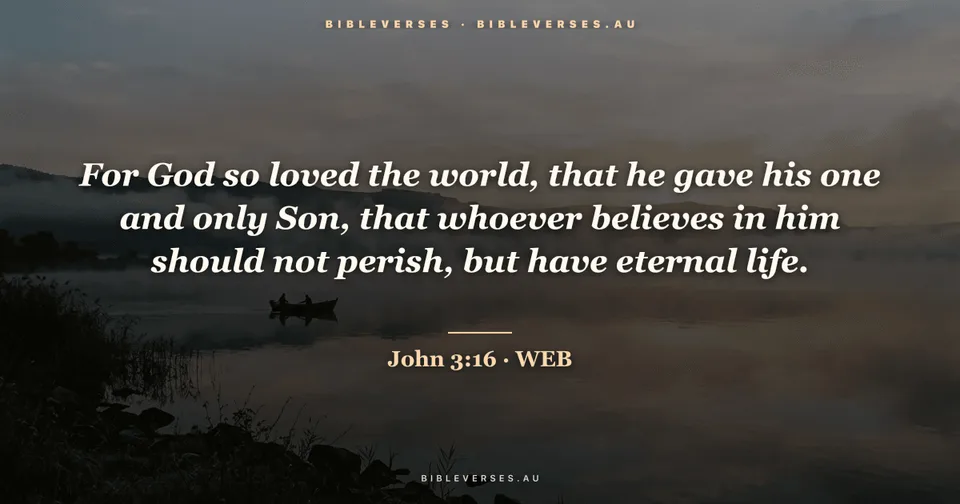
The ready-made gallery image above is an example of a different, wide layout. Use the maker’s preview and saved file to judge your selected size; do not assume that a gallery thumbnail is your final export.
A repeatable readability check
- Wait for the preview to finish and the download button to become available.
- Download the PNG and open the saved file, rather than inspecting only the editor canvas.
- View it at approximately the width it will occupy on the receiving phone. Read it without zooming.
- Check the reference and translation credit, not only the main sentence.
- Try a plain colour background if fine detail or bright patches compete with letters.
If a passage is still too crowded, choose a taller format or a shorter complete passage. Do not remove a clause and leave the image labelled as the complete verse. For a multi-verse reading, it may be better to send a link to the chapter.
Layout controls that can help
Open Text & layout options. Font offers classic serif, clean sans serif and literary serif choices. Text position moves the words between the centre, upper half and lower half. Photo darkness changes the overlay behind the text. A darker photo is useful only if the exported words and their credit remain clear.
A personal photo may be cropped differently in each format because the image has to fill a different rectangle. Keep important faces and details away from the edges, or use another background. Your uploaded photo is processed in the browser; sharing the exported file is a separate action.
Save a separate file for each destination
Changing a format in the editor does not alter a PNG you already downloaded. Export again after changing size, translation, background or wording. Keep the files whose full contents you have checked. Use Share image when your browser supports file sharing, or upload the saved PNG from the destination app.
See saving images on your phone and checking a quotation for the next steps.